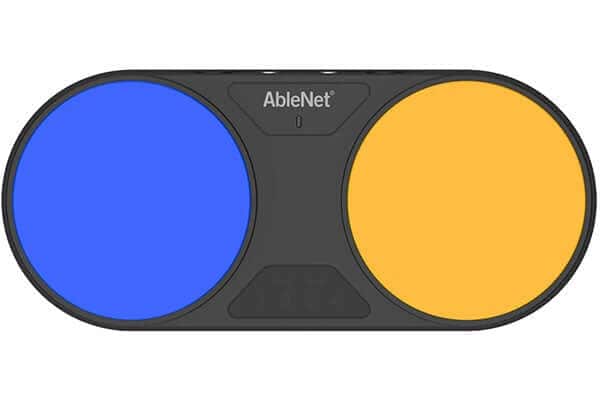
Use the Blue2 Bluetooth Switch to independently use a tablet, computer, mobile phone or other devices with a Bluetooth connection. The Blue2 accessible switch helps you control what you want to work on and is compatible with most switch scanning software.
Common uses of the Blue2 Bluetooth Switch include:
- Independently control an iPad or iPhone
- Start and stop music playing
- Connect to another assistive device for even more options
- Use with a speech app on your Android or iPad to communicate with your caregivers, parents, spouse, or anyone in your community.
- Use with a Switch Control to turn pages on ebooks (on your iPad or iPhone)
- Left or right mouse-clicking
In this video tutorial below, eSpecial Needs shows you how easy it is to set up the Blue2 Bluetooth Switch with an iPad, a desktop computer, or an additional assistive switch.
Find out more information and get your Blue2 Bluetooth Switch for accessibility now.
Transcript of this "how to" video for the Blue2 Bluetooth Switch below :
Today we're going to discuss some of the assistive technology that we offer. This one is called the Blue2 - it's a wonderful switching device that can be paired using an iPad and iPhone PC or Mac device even in Android and we're just going to go through some of the features so we want to make sure that the switch is turned to on under the white button it you have the on/off feature so just make sure that's turned-on
What we're going to do first is we're going to pair the device using Bluetooth technology you want to go to your settings and click Bluetooth and there we see the name of the switch blue2 - and go ahead and just you can see it'll tell you if it's connected or not you can go ahead and click on it to make sure okay so that's paired and that that's pretty easy the next thing we want to learn how to do is name our switch so it's still in settings you go down to general and then you click on accessibility and then you'll want to click on switch control and then switches so it'll be in the external component and I've already got I went ahead and named them orange and white accordingly the orange one it gave me several options I chose move to next item and then I and then I named the white switch select item it's just as easy as that!
If you would like to go ahead and program your switches to help you use your Pandora or your iTunes all you simply need is external keyboard with a USB connector you just simply go ahead and you plug in the USB connector to the back of the switch you want to make sure that your switches on learn you click that to learn and then there's a mode button in front underneath the orange switch that you'll be able to peruse through the various modes four five and six are programmable so we'll click on four we want to press switch one which will give you a blinking red light and you'll simply click on the keyboard f8 for play pause and then you'll click on s1 again and that's all you need to do to program so we'll go ahead and press F2 when we click on that 2 will be blinking red and we'll go to our keyboard and we will click f9 and that will advance us to the next song to make sure that it's programmed we simply go back and we click on the F2 and then we turn off the learn mode and that's it it! The Blue2 Switch has two external input devices to where we can utilize external switches and it'll help you be able to function more easily you can click on it with your face... You know they're just wonderful external devices to help you with your everyday living!
Find out more information and get your Blue2 Bluetooth Switch for accessibility now.